The Parallel Dialer lets you call more than one prospect at a time. If one picks up, you're connected to that person. Because you spend less time waiting on rings and voicemails, it can multiply how many conversations you have in the same time.
The Parallel Dialer is available on plans that include it. If it's locked for you, the option shows Upgrade to unlock Parallel Dialer.
The Parallel Dialer is built into Klenty's existing calling. You select the prospects you want to call and start the calls. On the calling page, you set Dial at once to 2–5 prospects, and the dialer switches to parallel mode. See Dialer versions if your screen looks different from this article.
The Power Dialer is its sequential sibling: it calls prospects one after another. See Maximizing Call Efficiency with Klenty's Power Dialer.
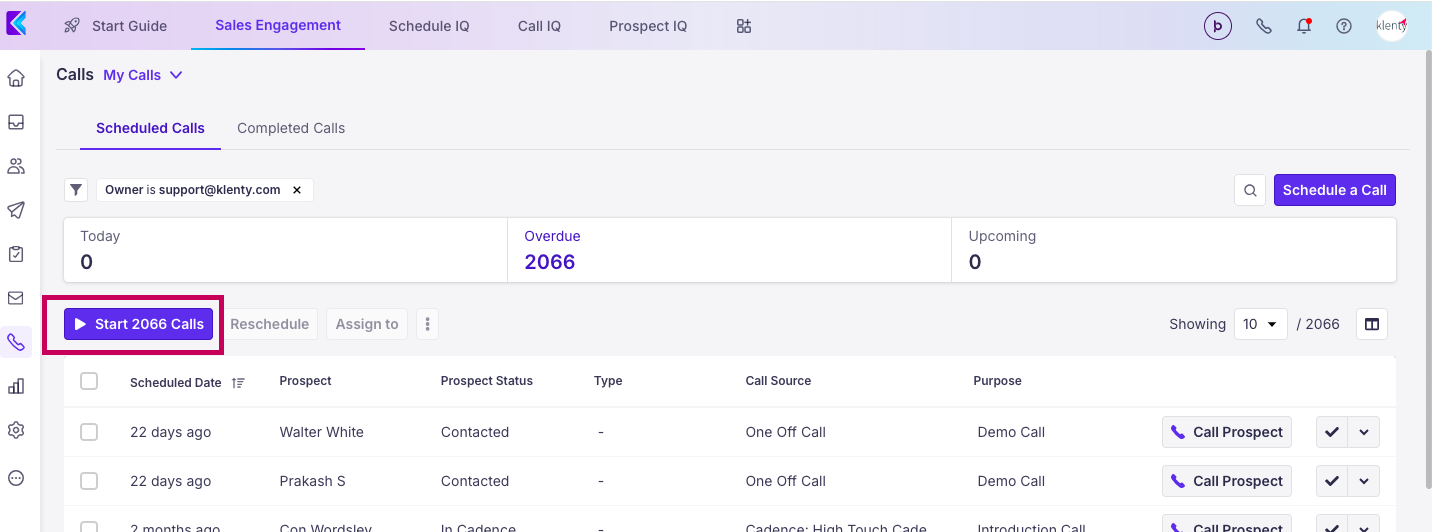
Go to Calls → Scheduled Calls (or select prospects on the Prospects page) and click Start N Calls.
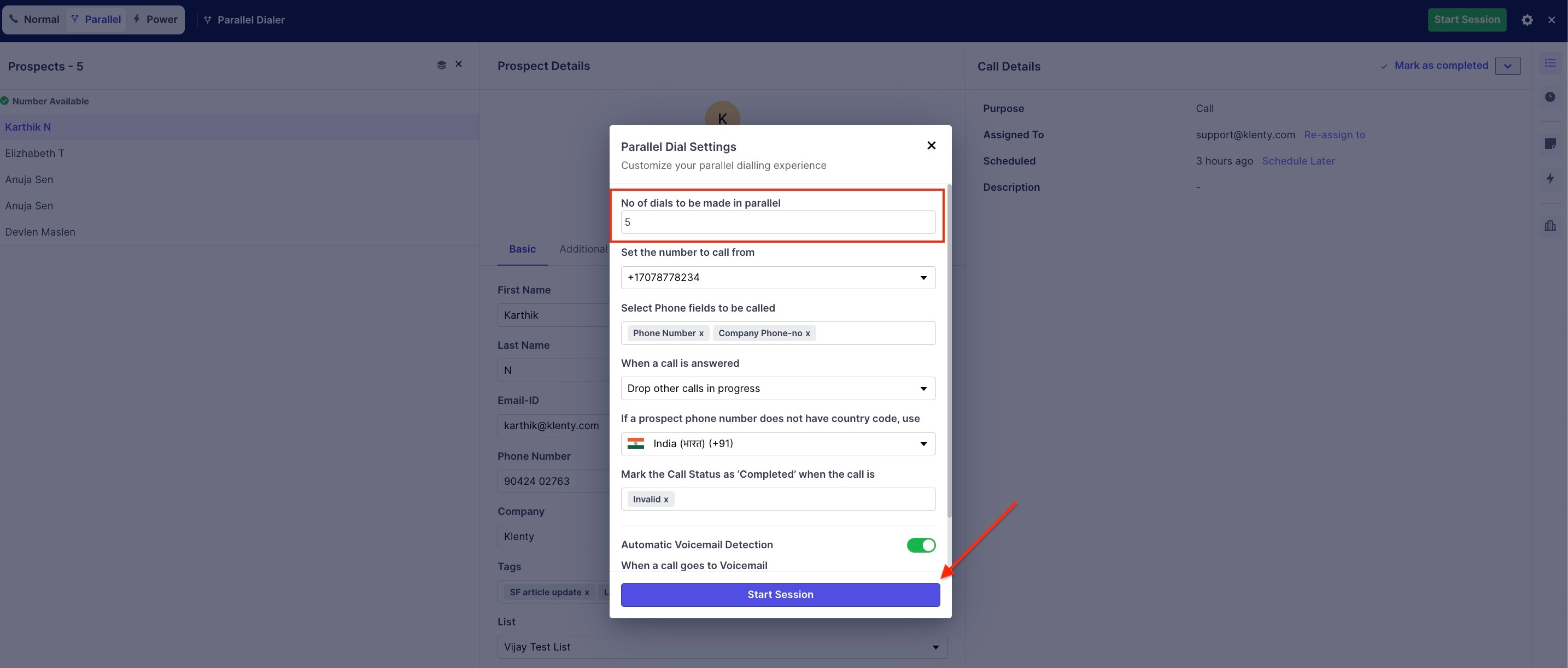
Open Dial at once and choose 2 to 5 prospects.
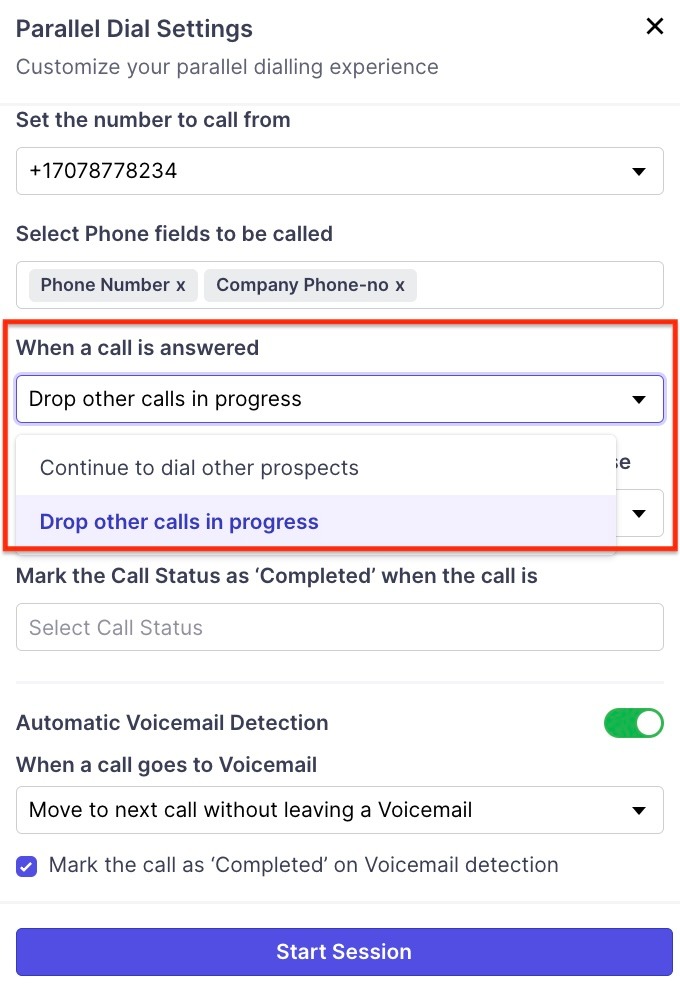
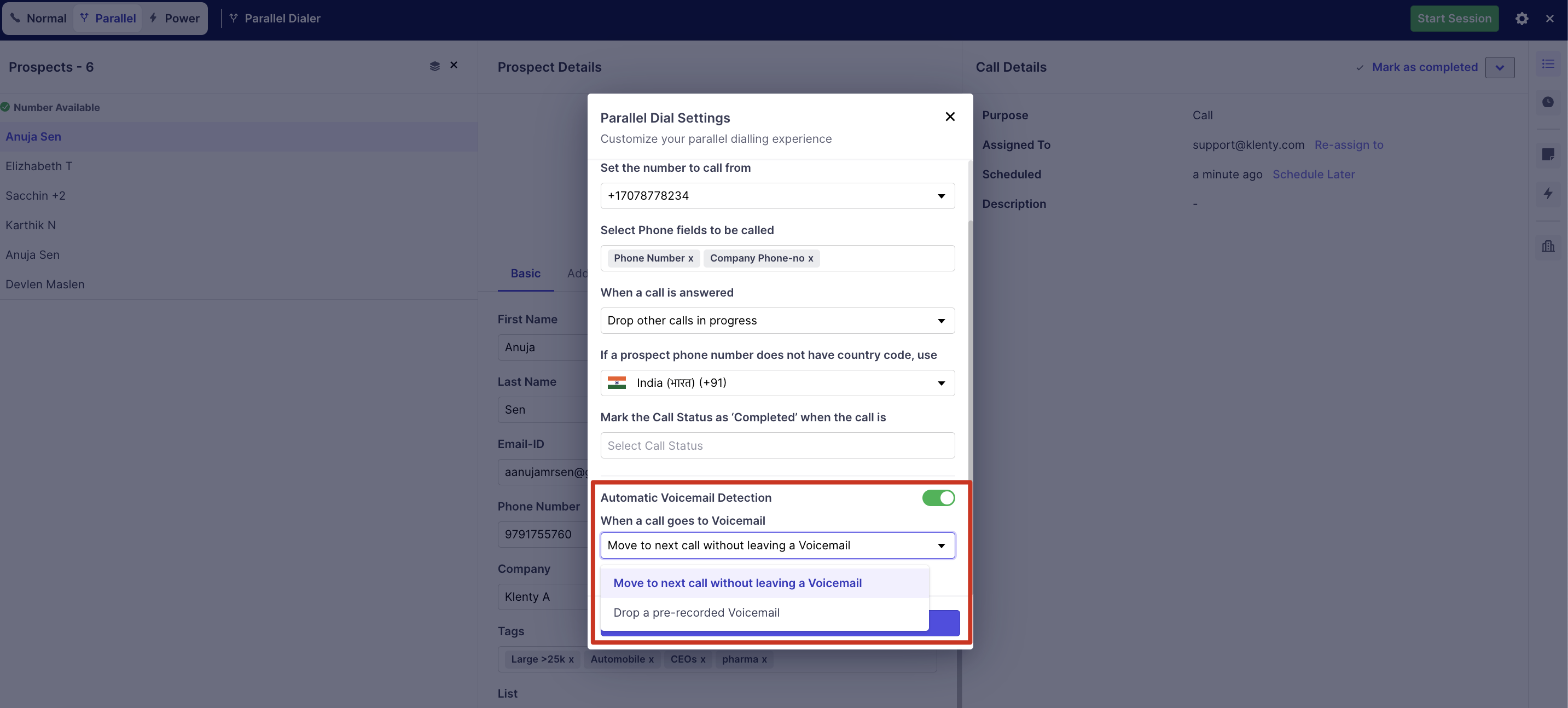
Check your Dial Settings. For what each option does, see Configuring Klenty's Parallel Dialer.
Click Start Session.
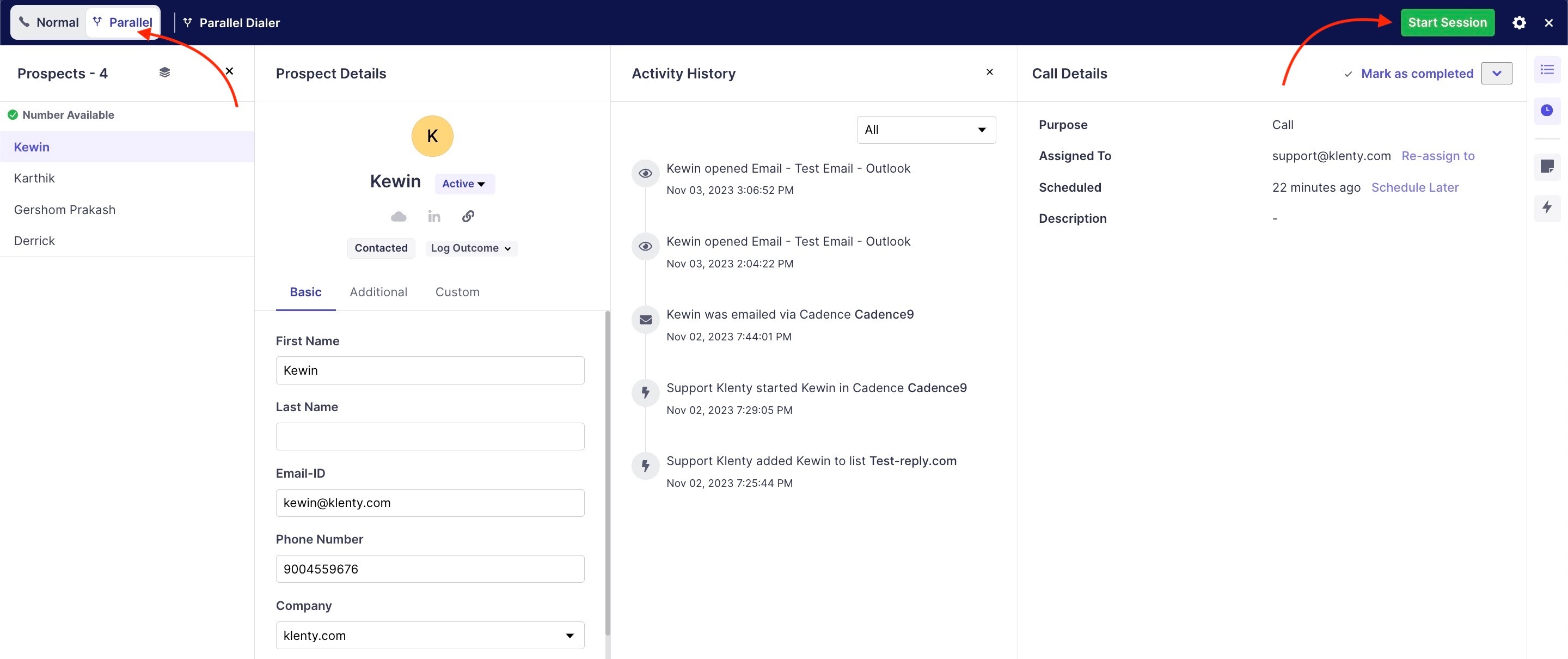
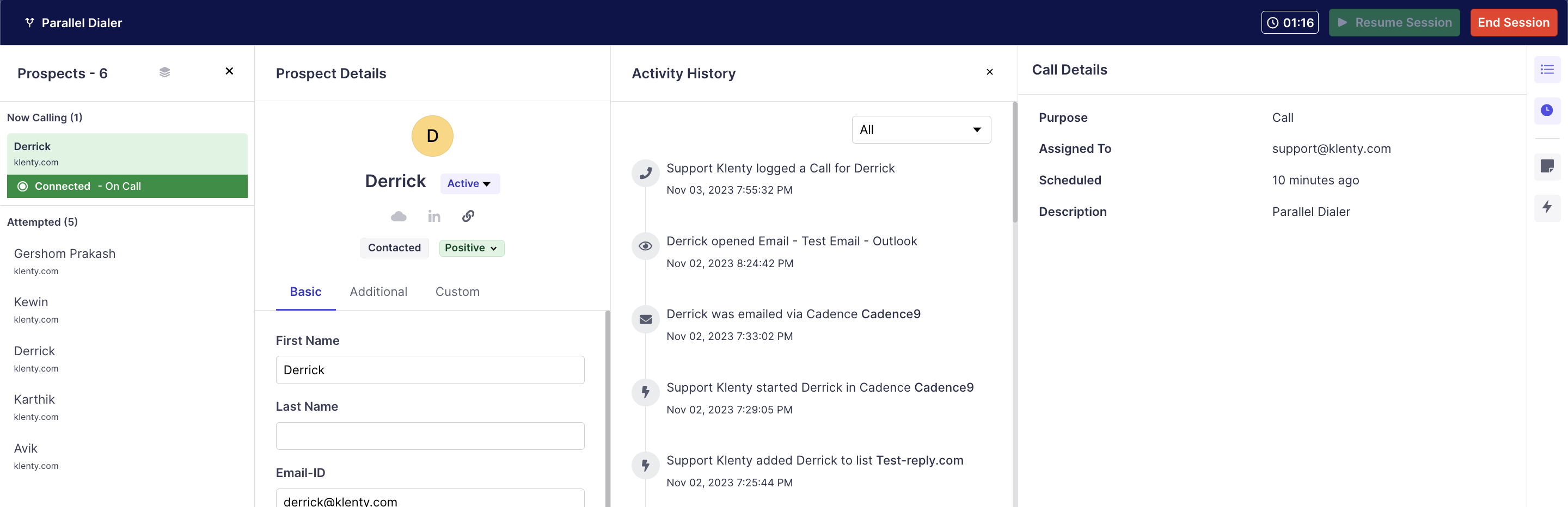
During a session, a banner reads You are in a Parallel Dialer session.
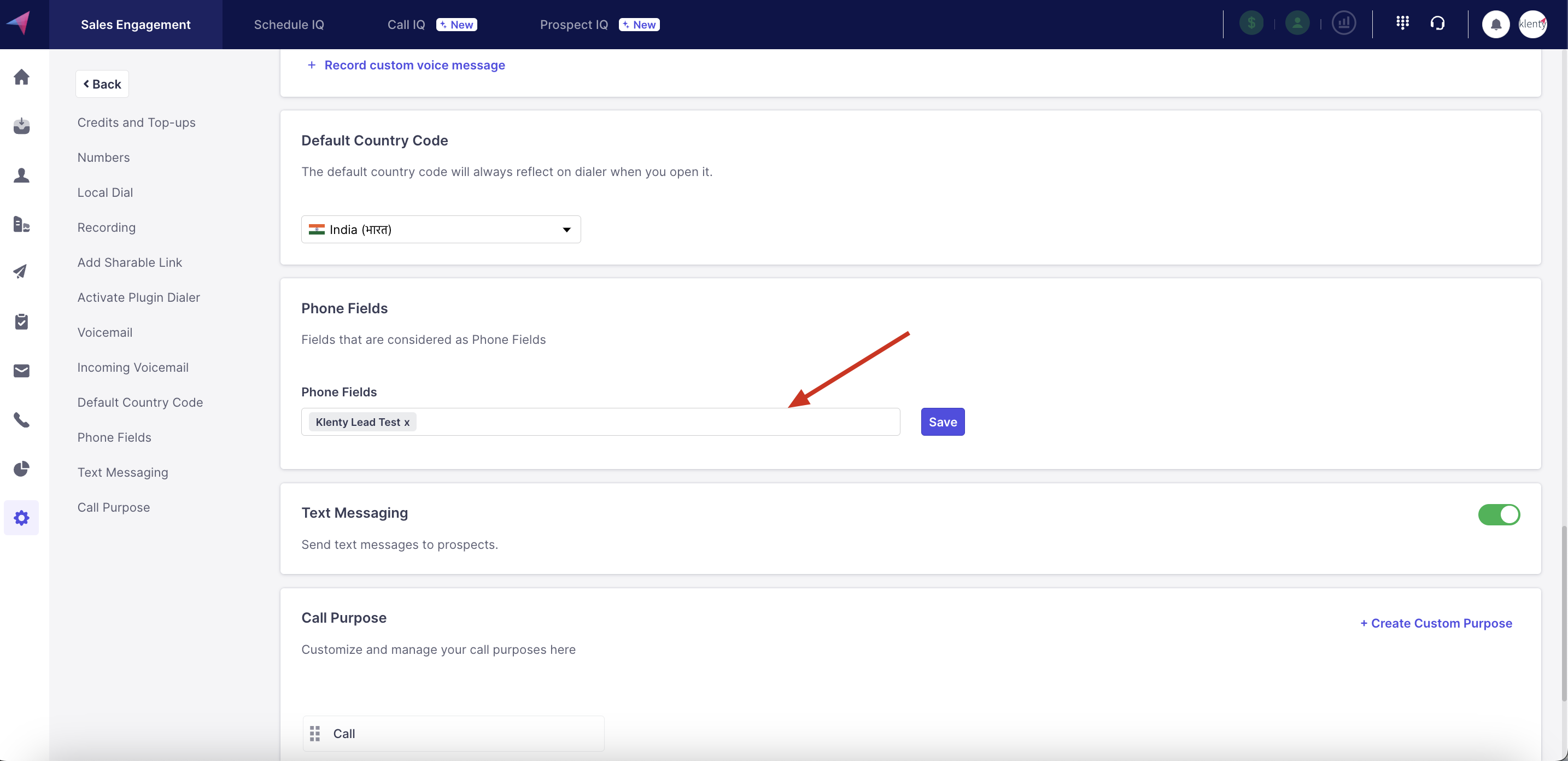
When the session starts, Klenty splits your selection into two lists.
Cannot Call list. Prospects land here when:
Invalid Number: the number has the wrong number of digits or invalid characters.
Duplicate Numbers: the same number belongs to more than one prospect. Klenty calls it once, for the first prospect only.
No Numbers: the prospect has no phone number.
Dial Limit Reached: you've reached the daily limit of dials to this prospect through the Parallel Dialer.
Ready To Call list. Everyone else. For each prospect you can see details such as the prospect, status, number of attempts, phone number, account, prospect local time, dials in the last 24 hours, schedule date, prospect time zone, call source, prospect status, prospect outcome, prospect list and prospect tag. You can also group prospects by company.
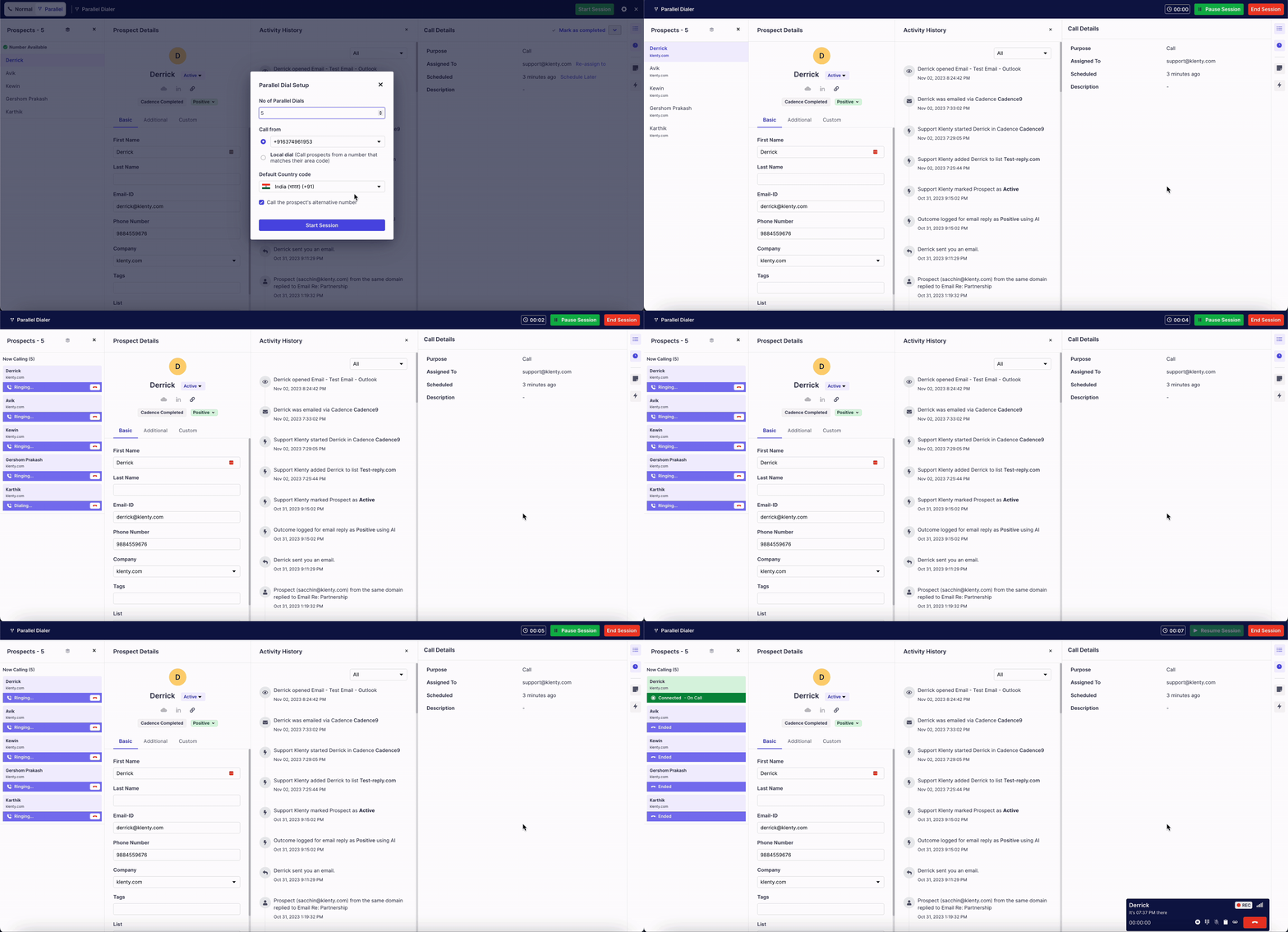
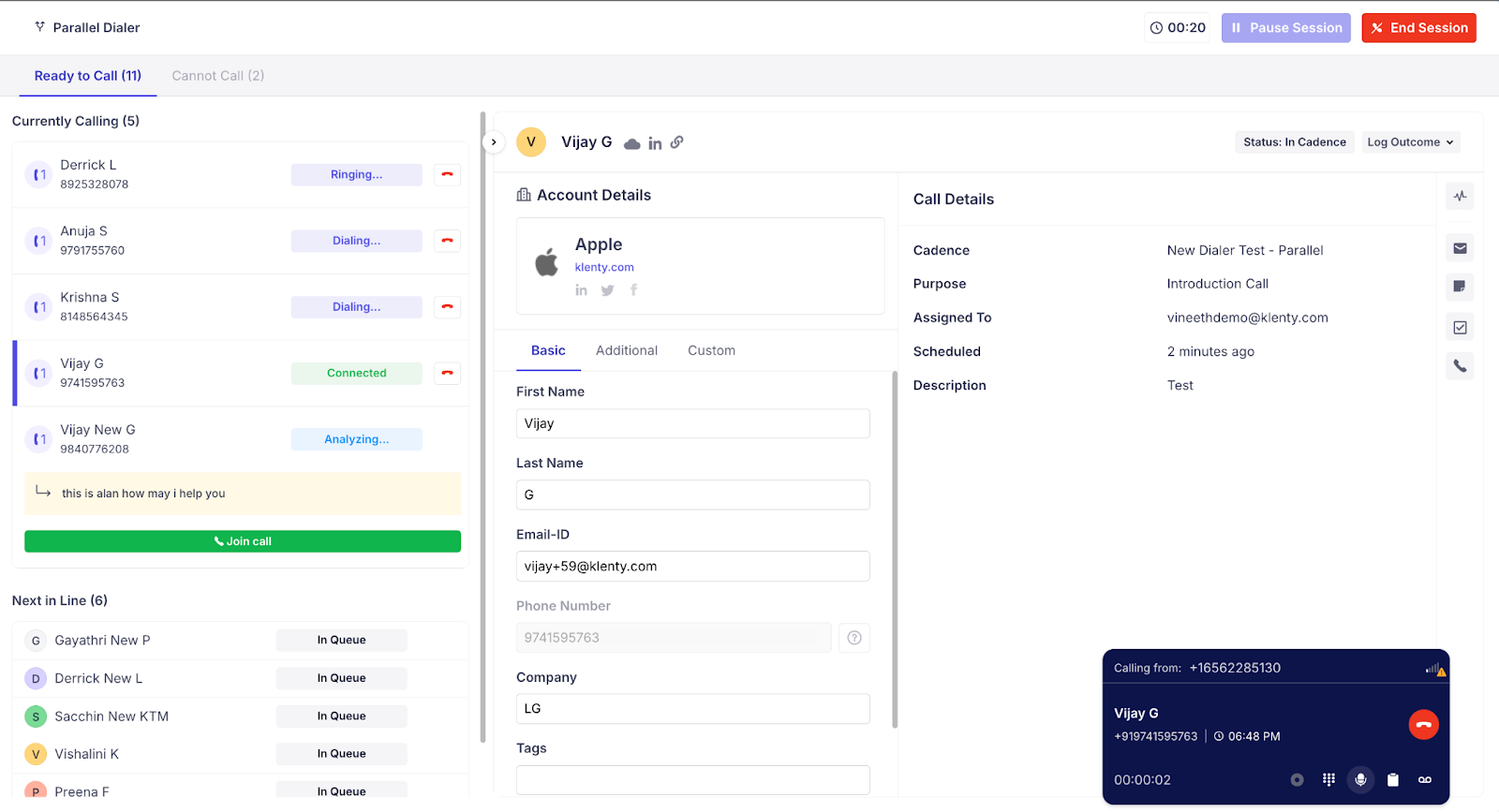
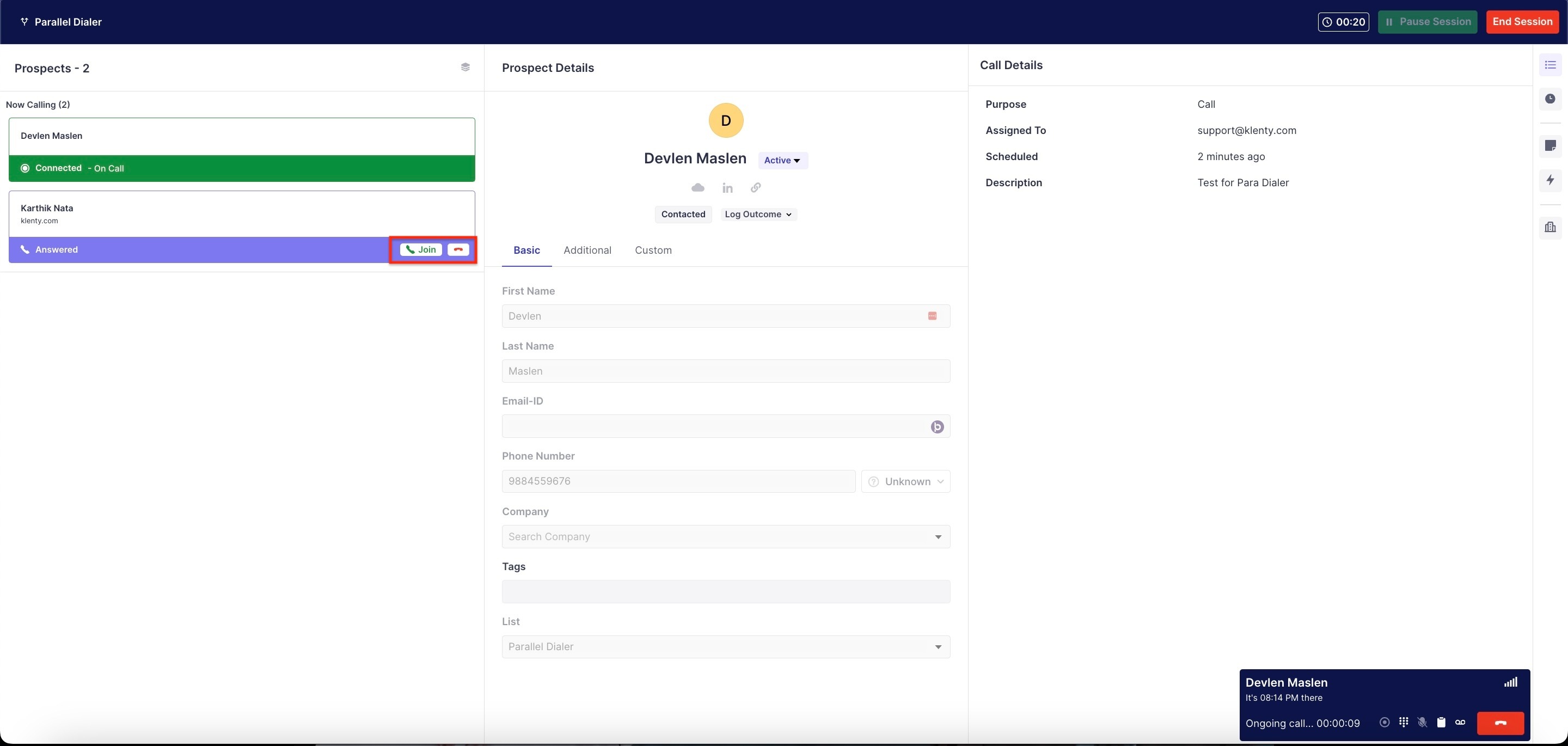
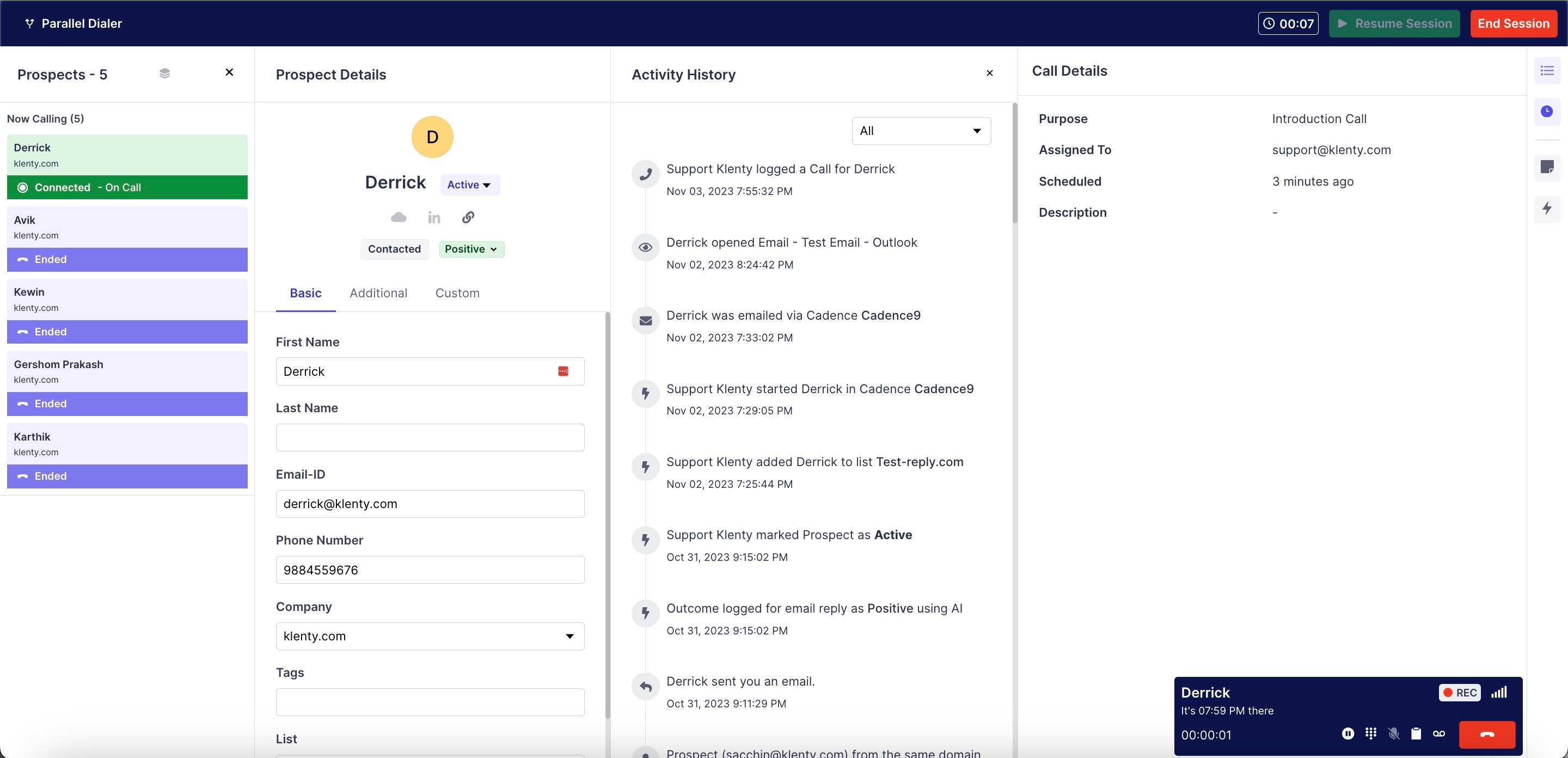
Prospects you're dialing appear on the left with a dial status: Dialing, Ringing, Analyzing, then Answered.
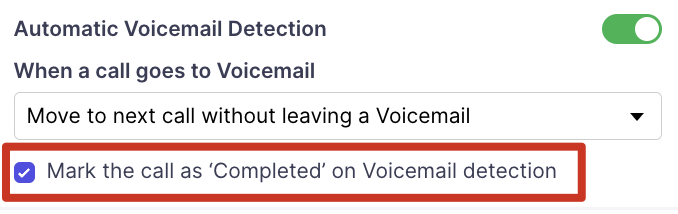
After Analyzing, each call is classified as a Voicemail or a Human.
If a call is confirmed as a voicemail, the dialer can drop a pre-recorded voicemail and complete the call, depending on your settings.
While a call is being analysed, if the prospect speaks you see a live transcript next to their name. If you recognise a call you want to join, you can override the analysis and join it.
When two prospects answer at nearly the same time, Klenty connects you to the first one who answered. It then drops the rest of the dialing, or gives you the option to drop and join a different call.
For every answered call, log notes and an outcome. They're saved in Klenty and in your CRM.
You can pause the session at any time. When you pause, an Attempted section opens for review.
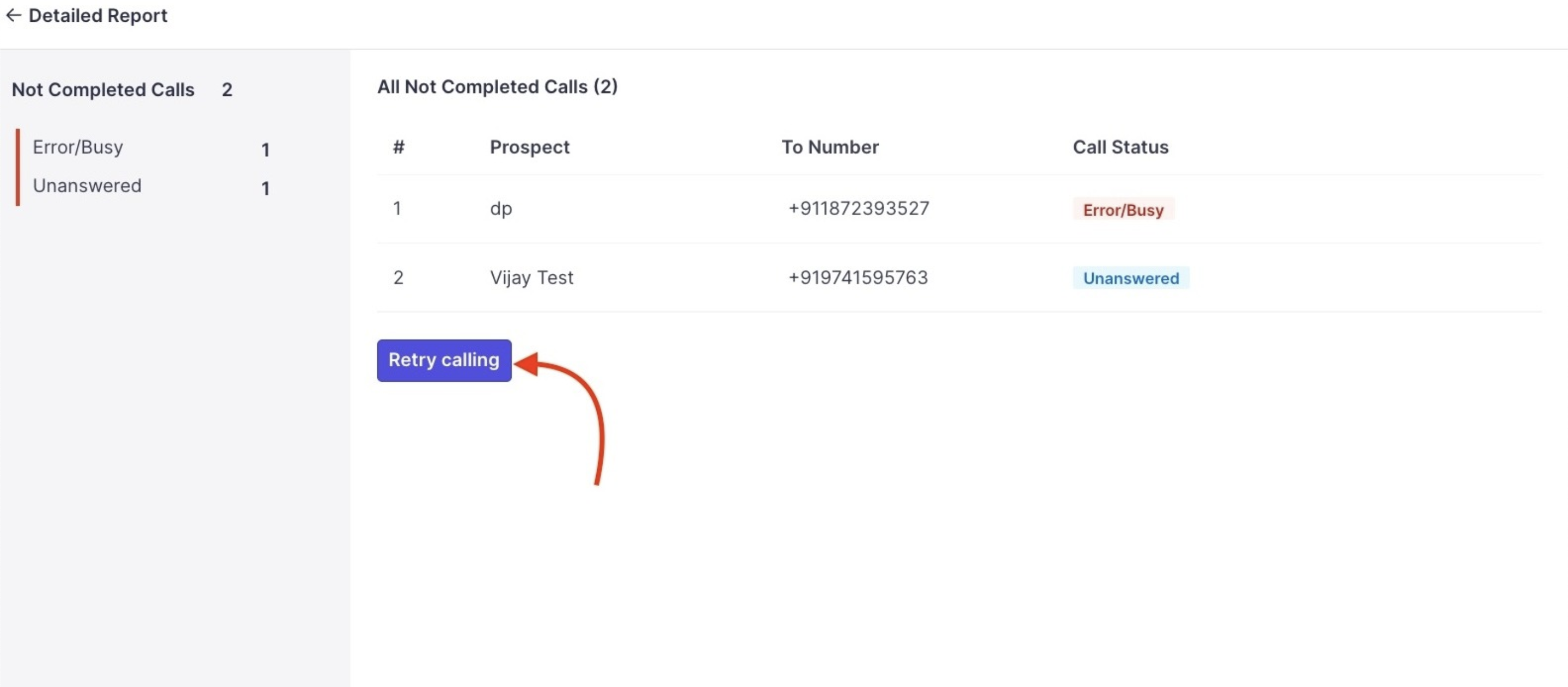
Attempted begins with a quick progress overview, then lists:
Prospect: the prospect's name and details
Task Status: the status of the task for that prospect
To Number: the number associated with the prospect
Call Status: the status of the call, if one was attempted
Reason: the reason behind each status
You can filter by call and task status and retry. This report is available until you end the session.
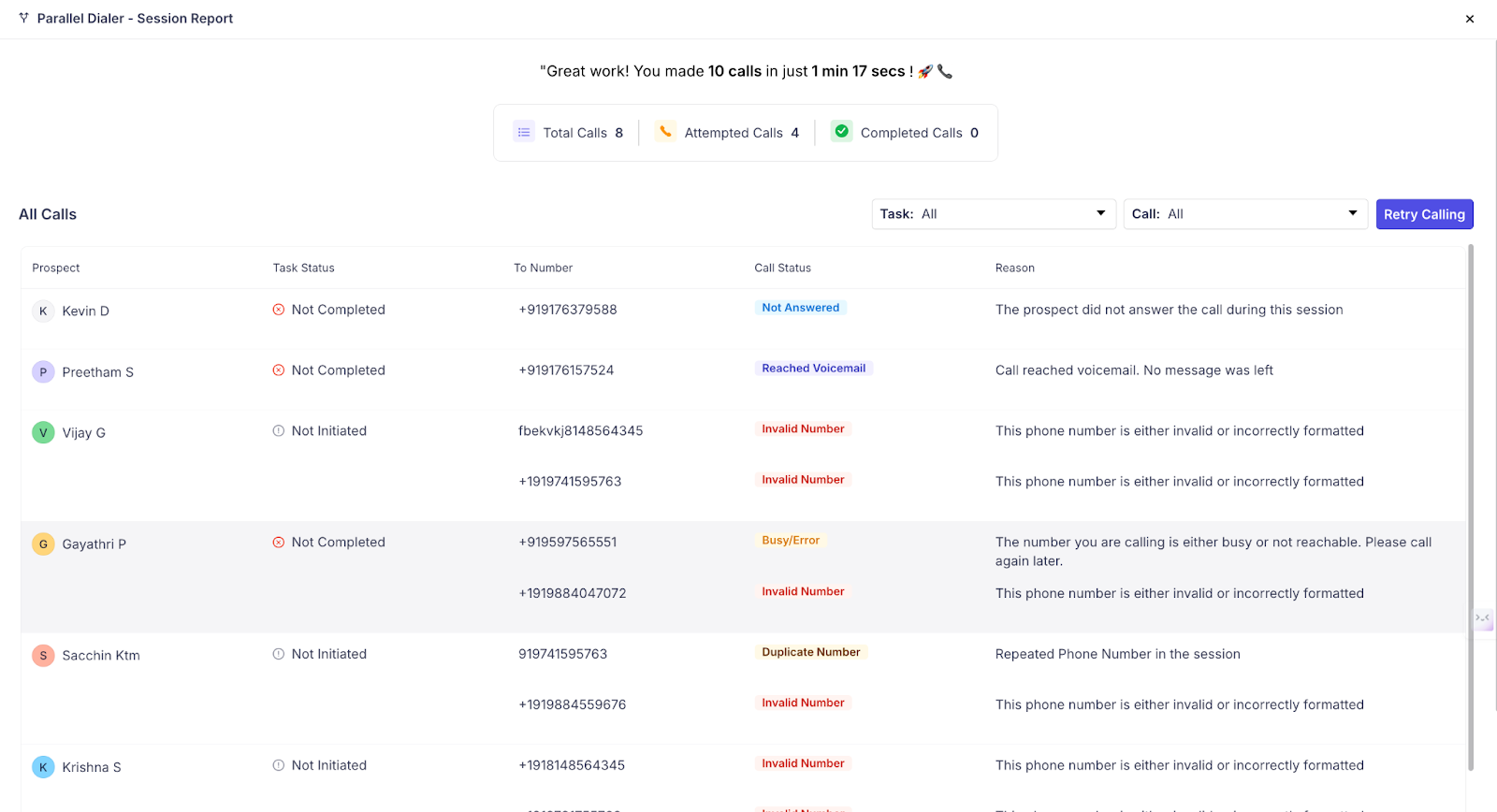
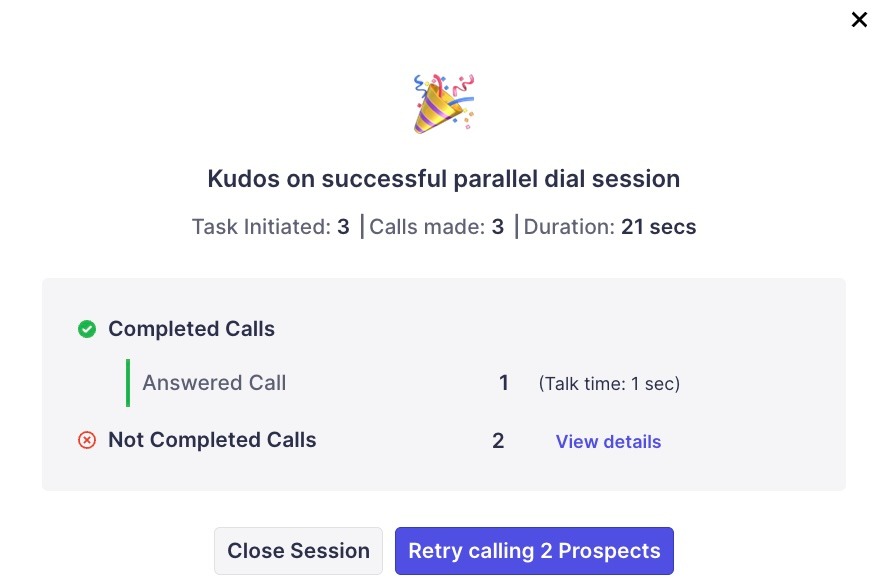
Klenty shows a report of calls completed versus not completed, the reasons the others weren't completed, and the option to retry them. Open View details for Not Completed Calls to see more.
Max 5 calls at once, minimum 2.
Start Session is disabled if you have no number to call from, your credits are too low, or your browser has blocked the microphone.
Session results appear in your reports, which helps you track answer rates over time.
Related: Parallel Dialer Best Practices, Parallel Dialer FAQs and Choosing which number your calls come from.
