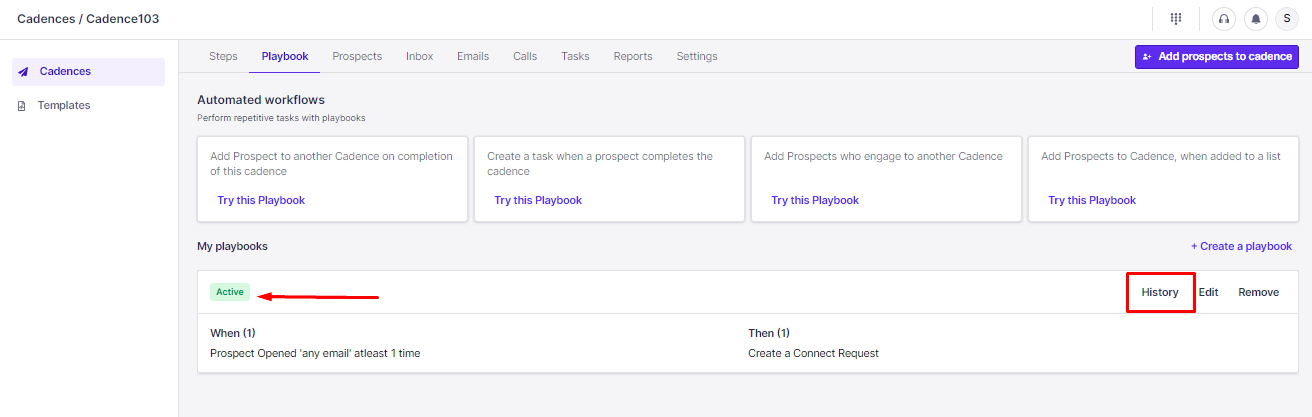
As your cadences progress, prospects show different levels of engagement. Some open your emails, some click links, some reply. Playbooks let you automate what happens next, such as moving prospects into another cadence (chaining), creating a task or stopping the cadence.
Open a cadence → Playbook tab ("Automated workflows – Perform repetitive tasks with playbooks"). Account-wide workflows are under Settings → Workflow Settings when your plan includes them.
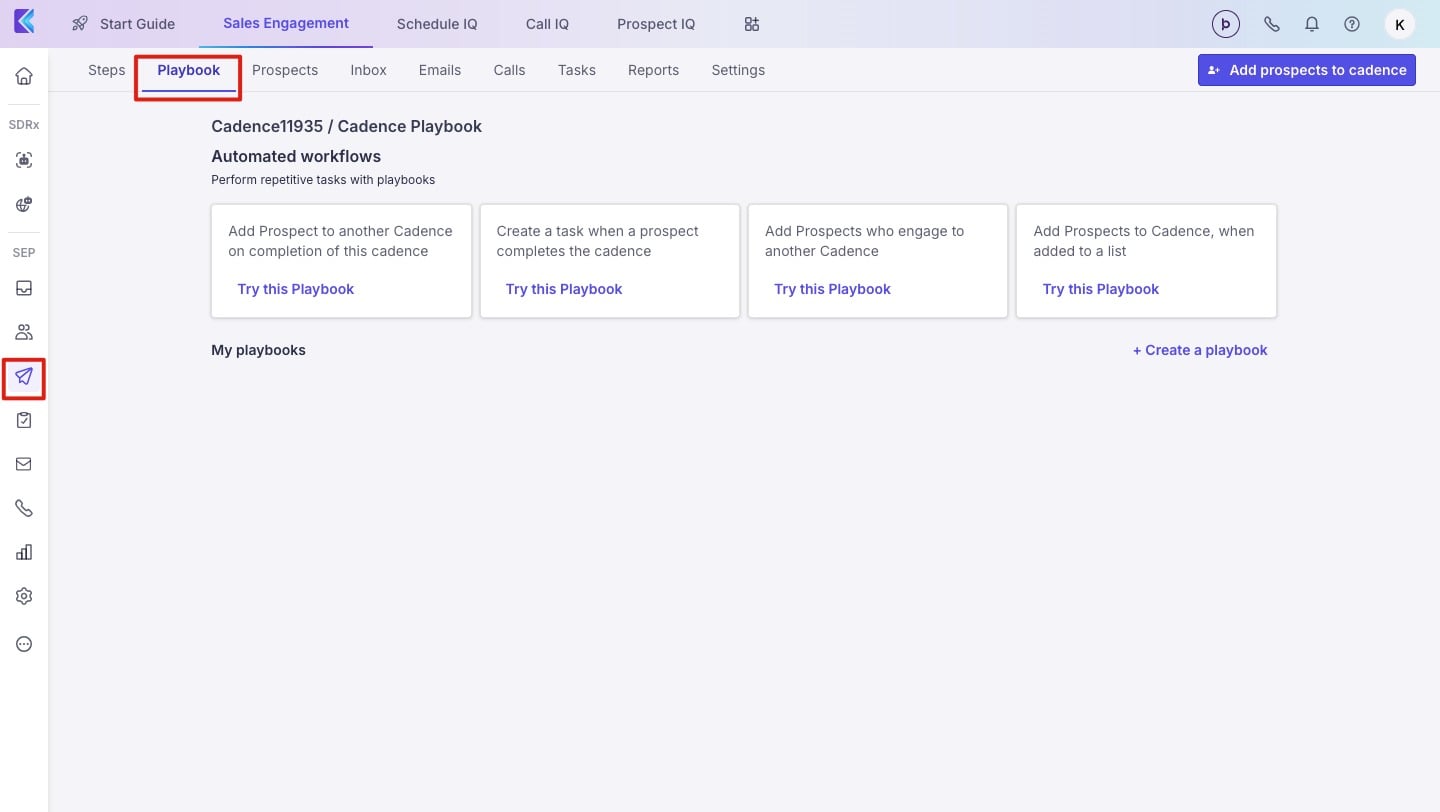
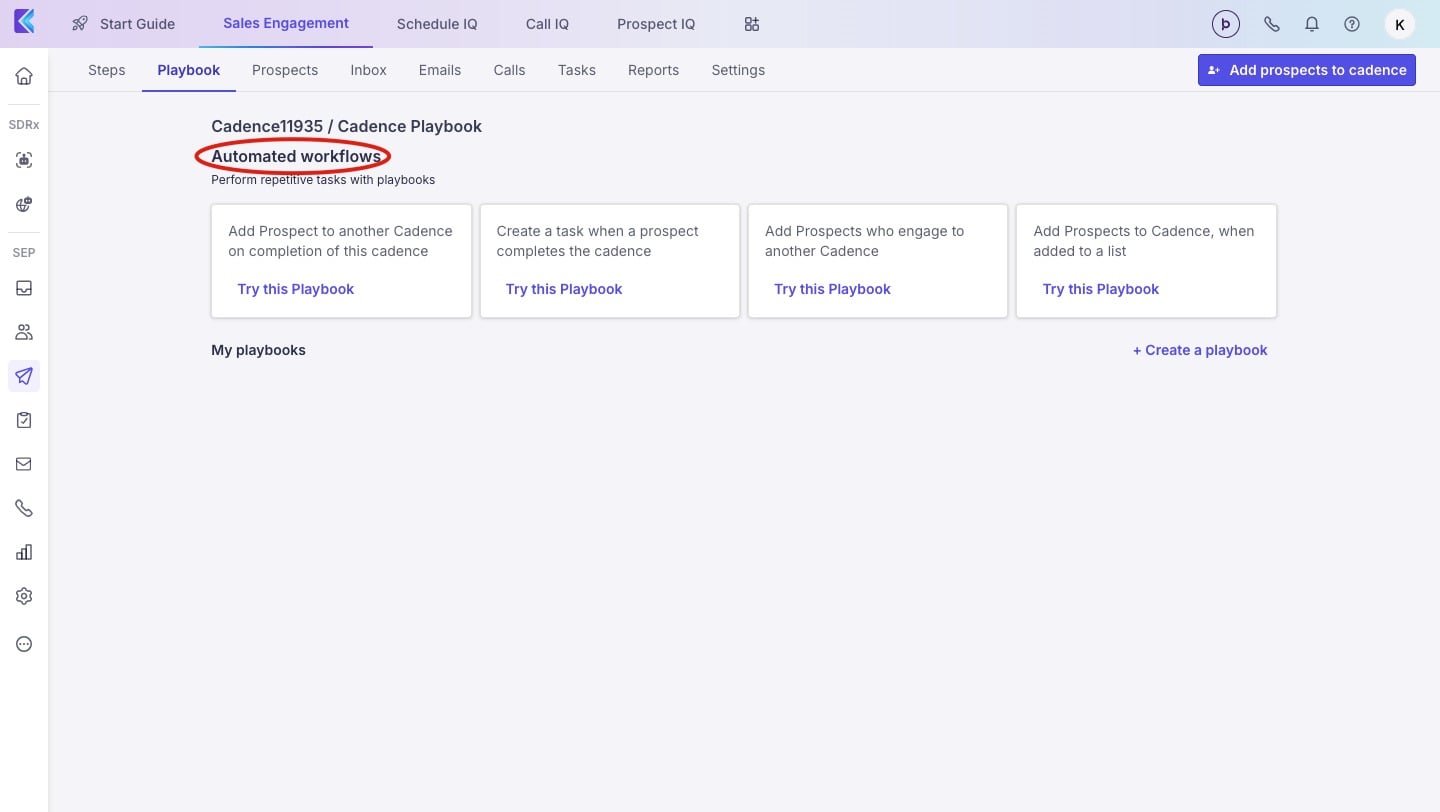
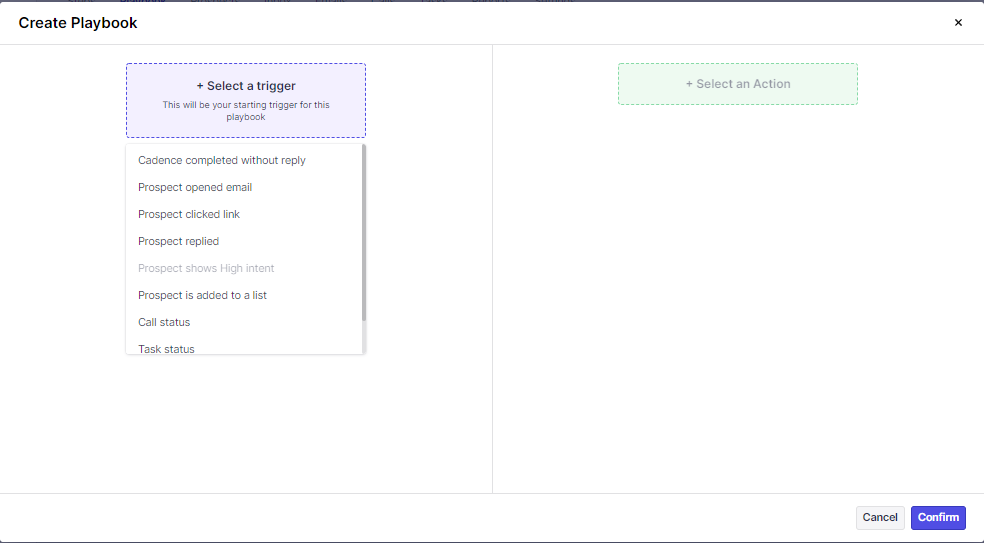
Pick a quick-start template, or click + Create a playbook. The templates include:
Add Prospect to another Cadence on completion of this cadence
Create a task when a prospect completes the cadence
Add Prospects who engage to another Cadence
Add Prospects to Cadence, when added to a list
Add Prospects to Cadence when they enter a Pipedrive, Salesforce or Zoho deal stage
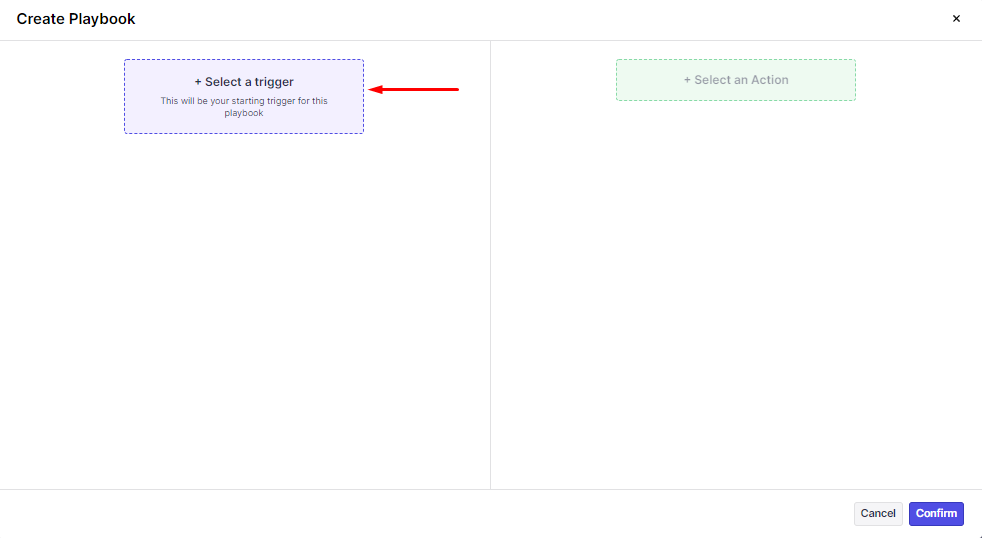
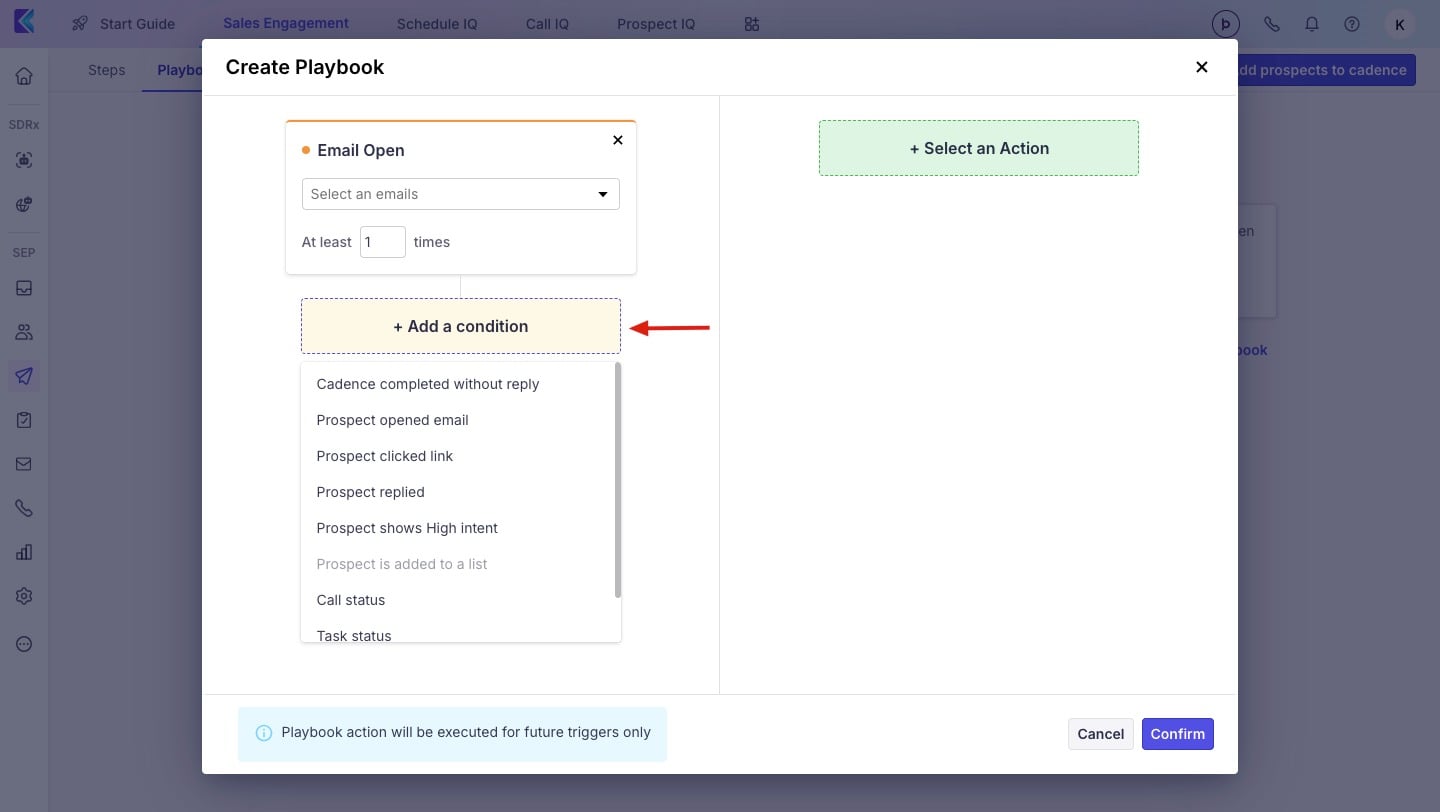
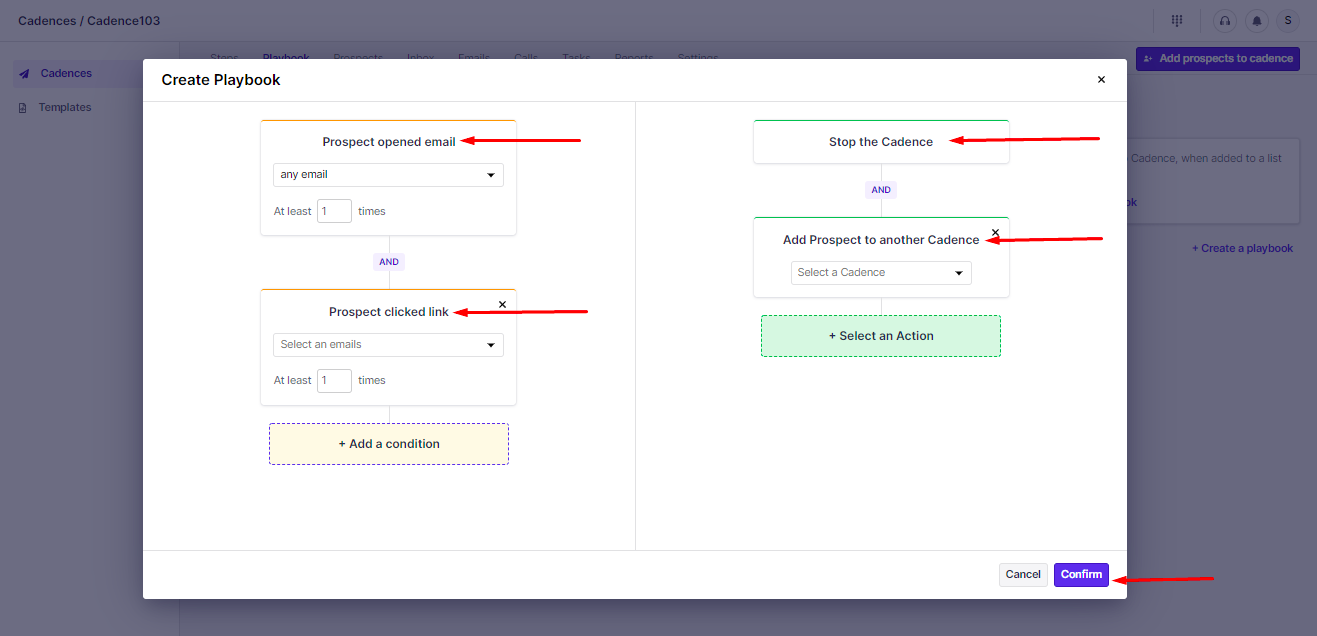
Choose a condition, then an action, and save. You can add more than one condition to build more complex workflows. The action runs only when the conditions are met.
Optionally set a delay before the action runs, for example before the prospect starts in the next cadence.
Cadence completed without reply
Email Open / Email not open
Links Clicked / Email not clicked
Email replied / Email not replied
Deal enters a deal stage (for Salesforce, Opportunity enters a stage)
Prospect shows High intent
Prospect is added to a list
Prospect Status is
Call status
Task status
Outcome
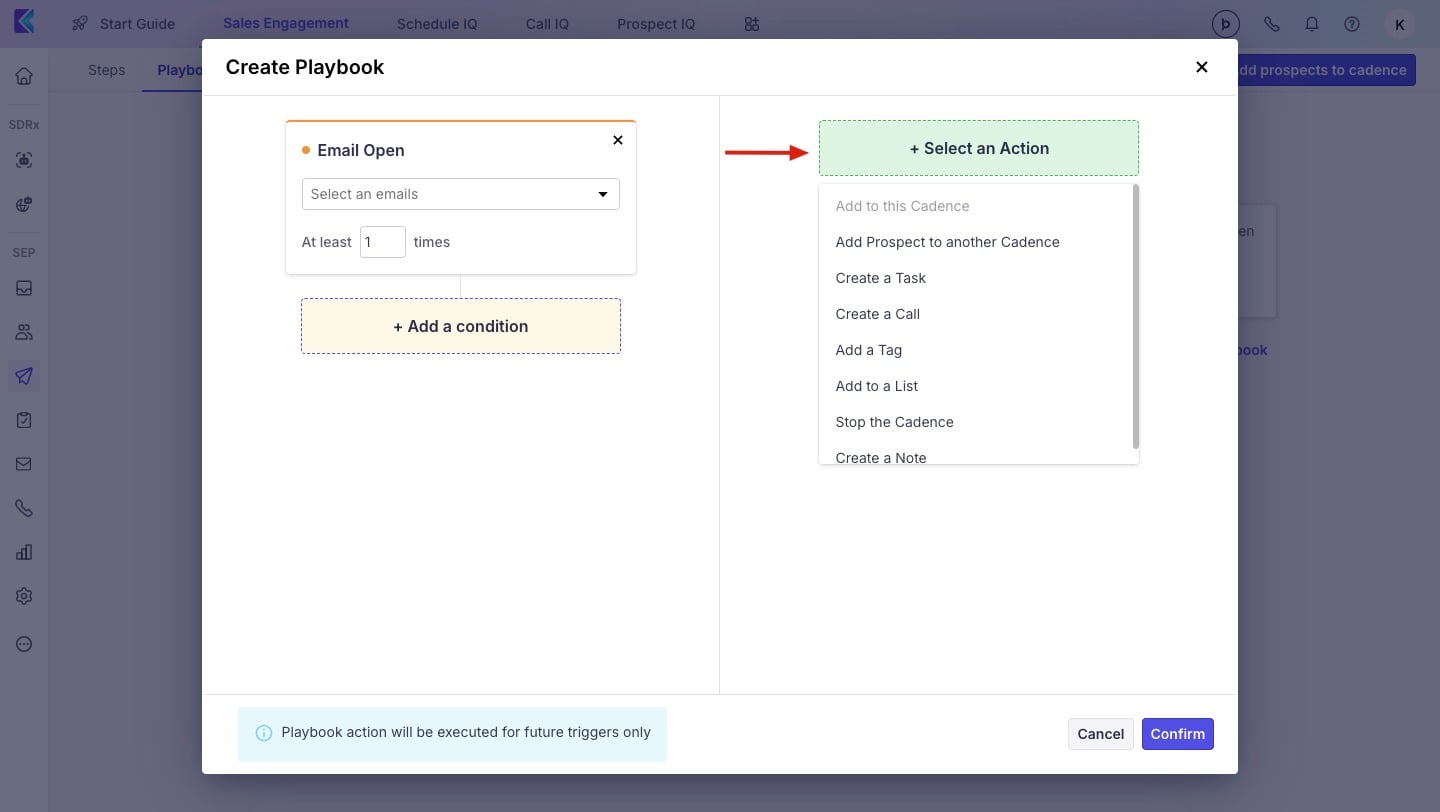
Add Prospect to another Cadence
Add to this Cadence
Create a Task
Create a call
Add to a List
Add a Tag
Stop the Cadence
Stop Cadence (Same Domain)
Create a Note
Move account stage
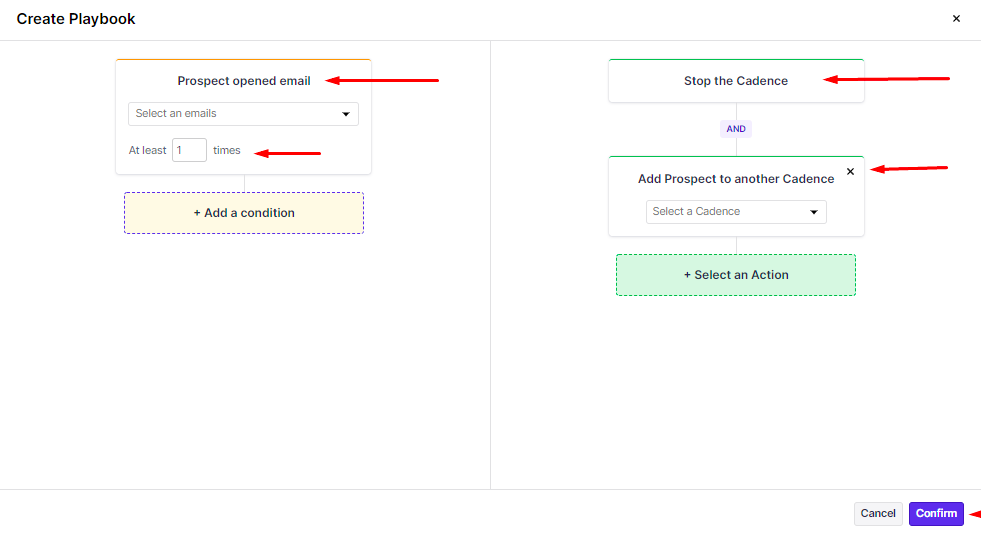
When a prospect opens your email, stop the current cadence or move them to a new one.
If a prospect opens several times or clicks a link, move them to a cadence made for engaged prospects, so you can send more personalized follow-ups.
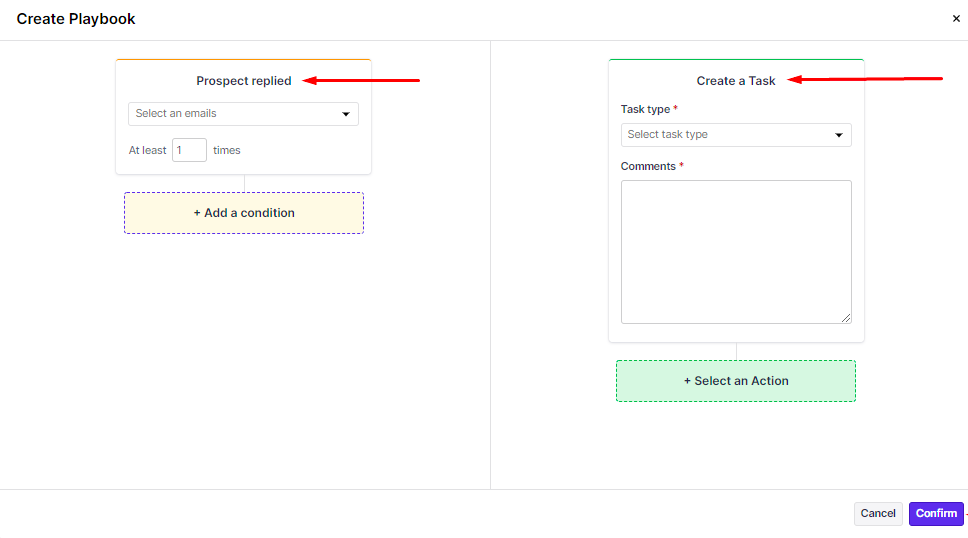
If a prospect replies, create a task for yourself, or any other action you choose.
Chaining: use Add Prospect to another Cadence on completion of this cadence to start prospects in the next cadence when they finish this one.
For another example, see Linking Prospect List to a Cadence - An automated Workflow.
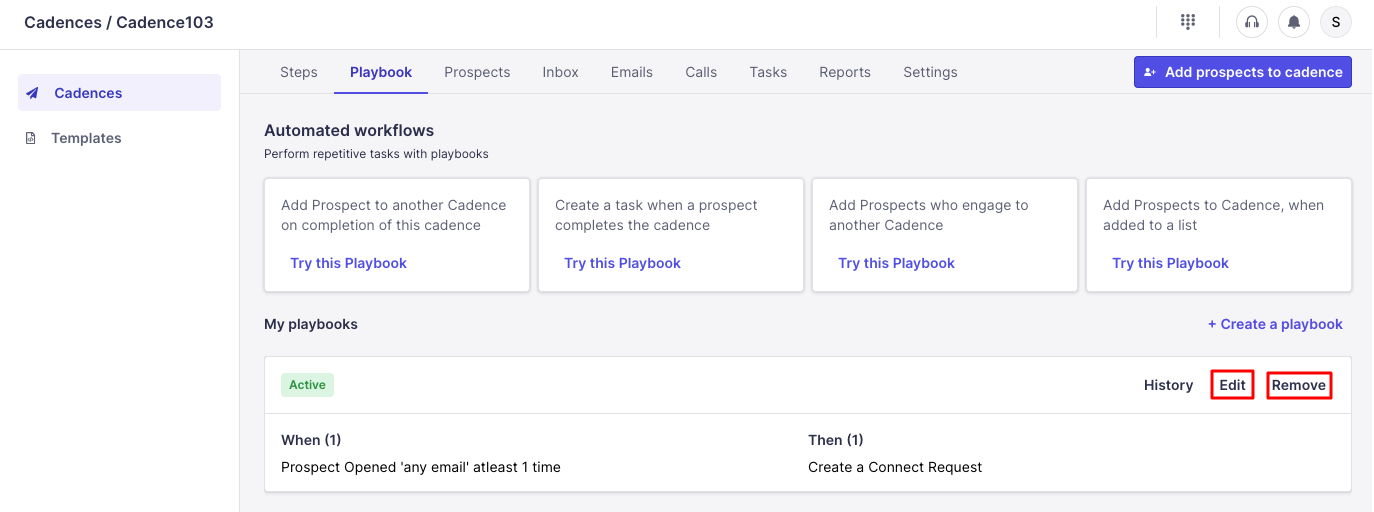
Open the playbook's log to see what it has done.
You can edit or remove a playbook from the same tab. If you edit one, you lose the log history from before your change.
When you Clone a cadence, tick Copy with Playbook to copy its playbooks too.
If you reorder or insert steps in a live cadence, playbooks are paused until you update them. See Reorder steps & Insert new steps into an active cadence.
The Playbook tab needs chaining to be part of your plan, so it may not appear on every plan.
Deal-stage triggers need a connected Pipedrive, Salesforce or Zoho CRM. They aren't offered for HubSpot or Dynamics 365. For Salesforce and Zoho, CRM deal sync must also be on for your account.