
How to add a signature to your Email?
1. Create a new signature
Head to Settings > Email settings > Signatures > click on Create new > give a signature name and check the 'Default' checkbox if you'd want to set the signature to be default one,
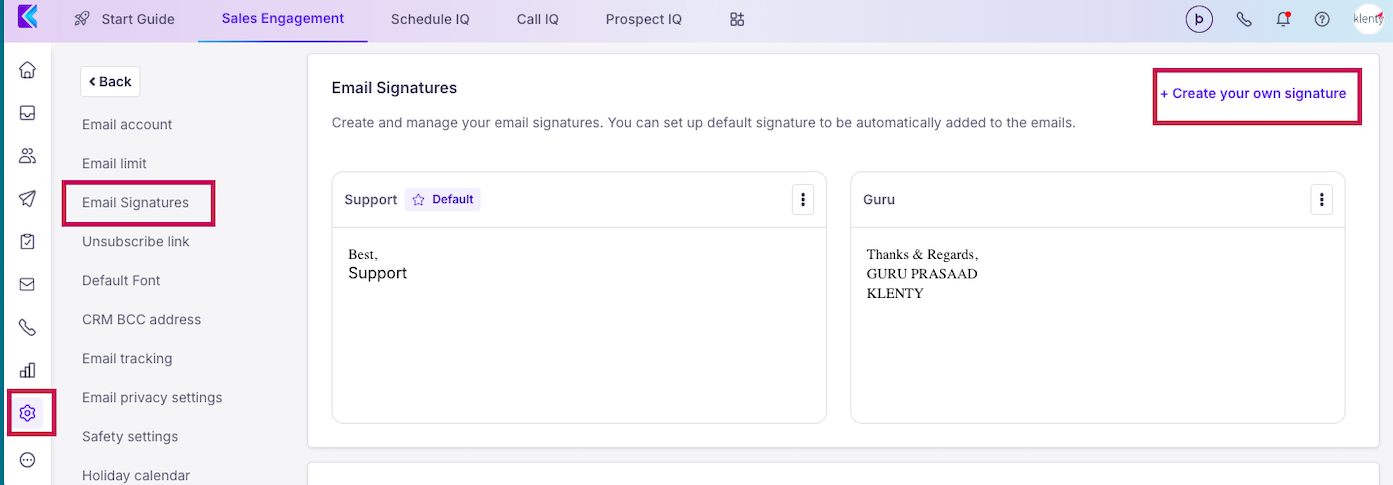
Then, add in the signature body (customize it using the formatting options) and Preview the signature before hitting Save.
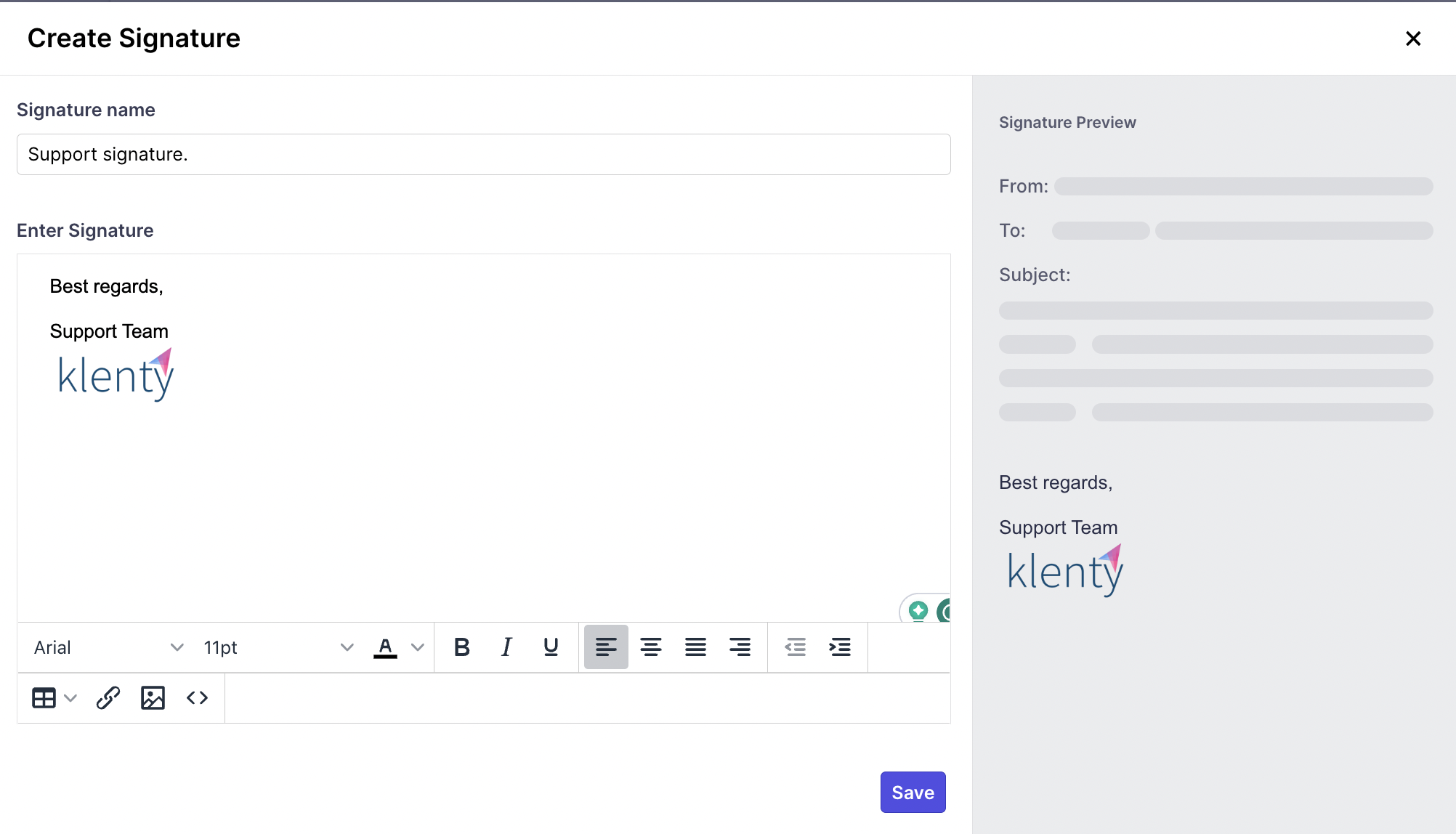
2. Add the signature to your Email
While drafting your Email, click on the icon “Signature”, where you can find the signature name that you just created
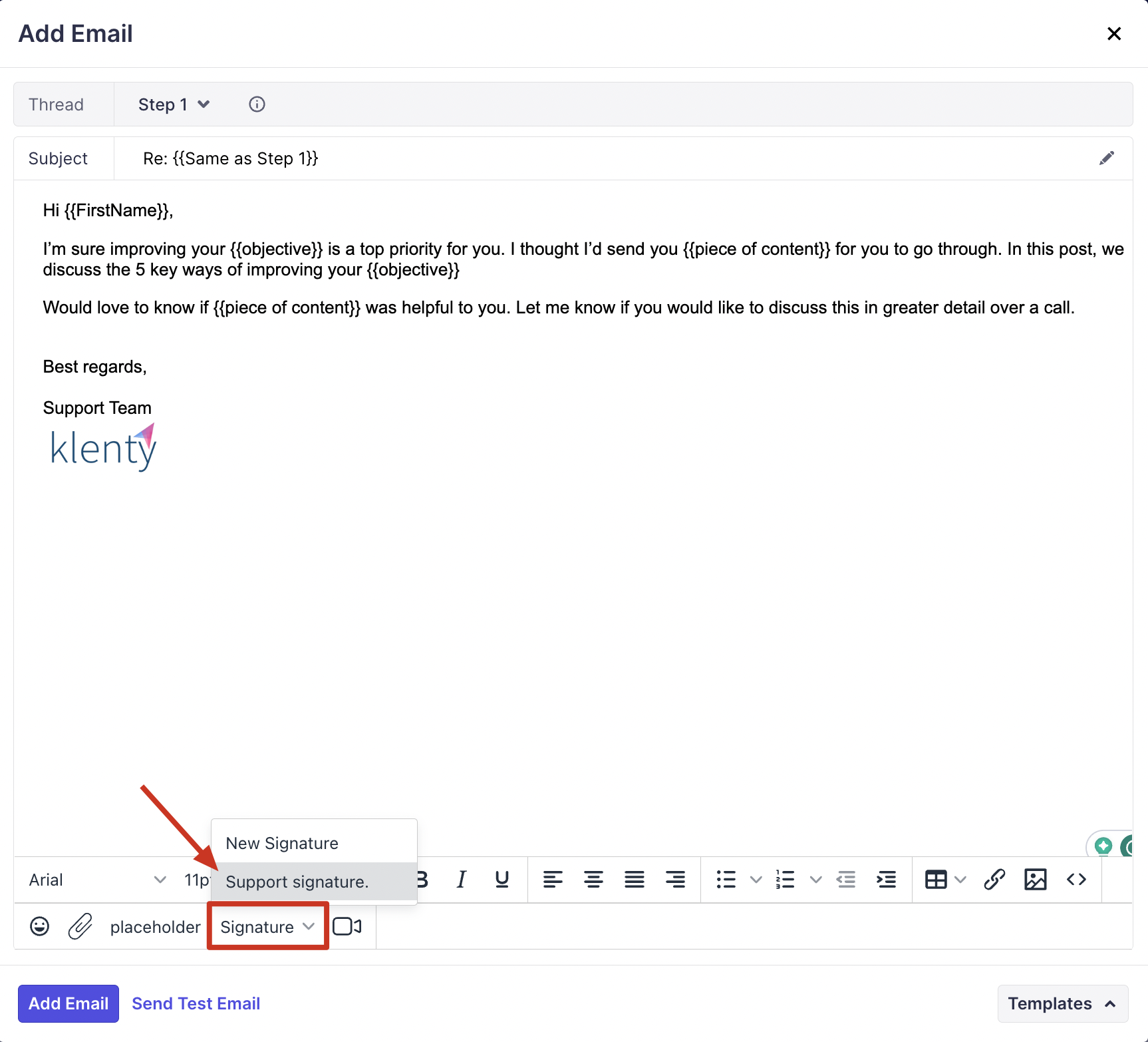
You can easily add the signature to your email by clicking on the signature name.
Tired of adding the signature each time while drafting? Well, we got you covered!
Make use of the Default signature. When you set a signature to be the default one, it gets added while drafting your email template. (Note: Only one signature can be set as default).
How to use multiple signatures?
When there are multiple users in your team, the respective signature of each user can be inserted in the email.
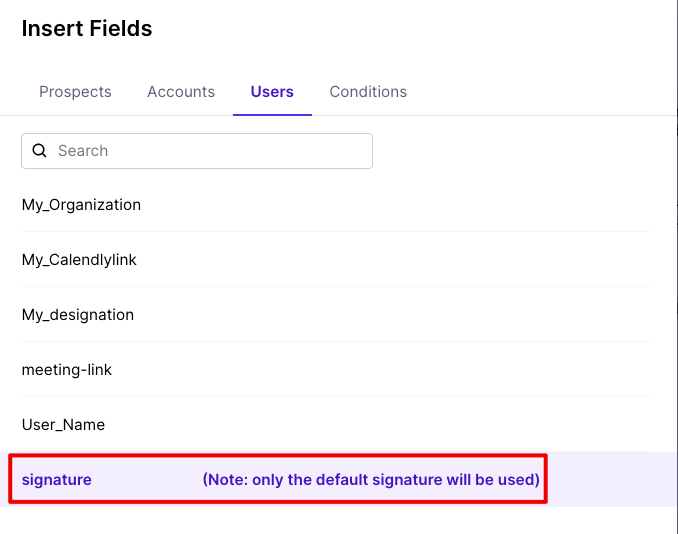
Head to the cadence > In the email composing window, click on the Placeholder icon > head to the User tab > choose Signature.
The signature is inserted as a placeholder. (Note: The default signature of the user you choose in the 'assign to' option, will be replaced by #{{user. Signature}}).
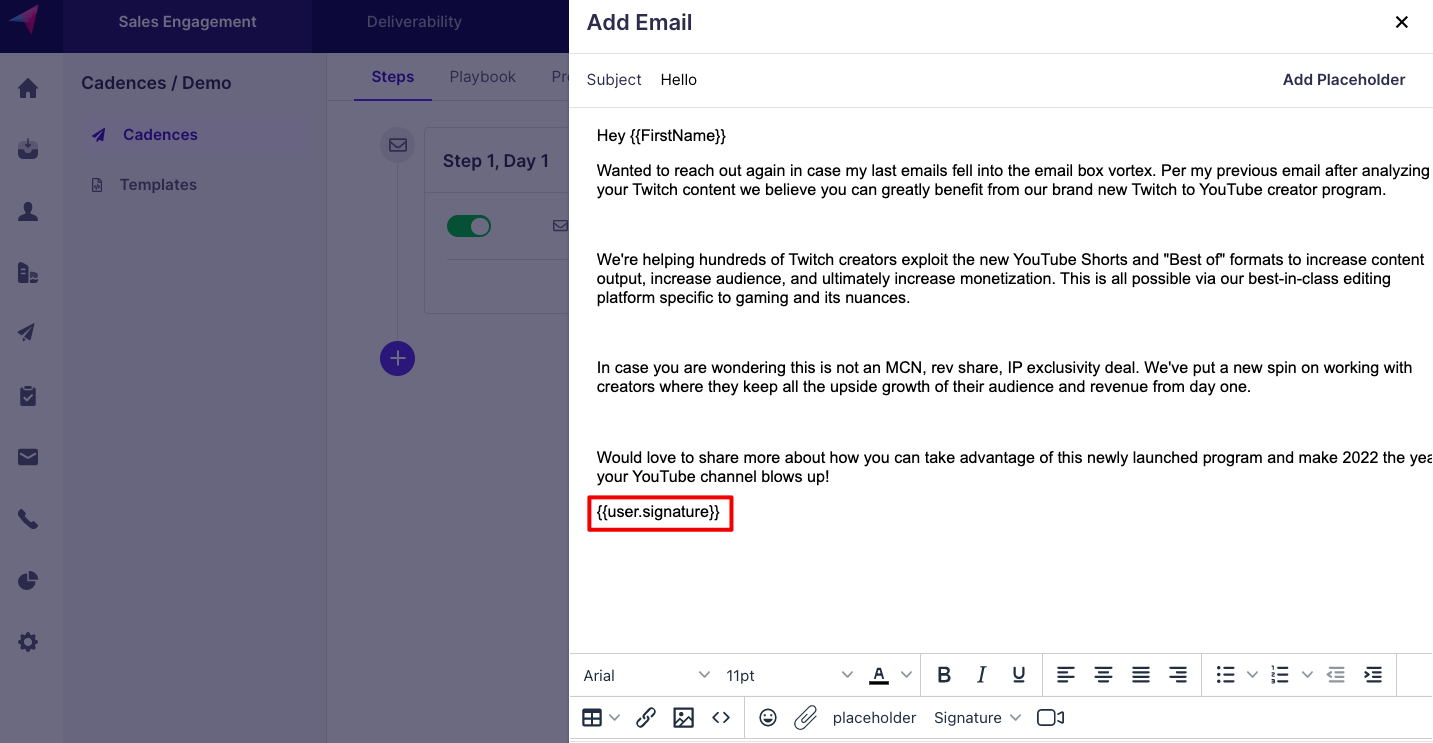
Advantage of using the signature placeholder
With the signature placeholder: The changes that you make to the signature in settings, will be updated when the emails are sent. But, it doesn't happen if the signature is added to the template from the signature icon.