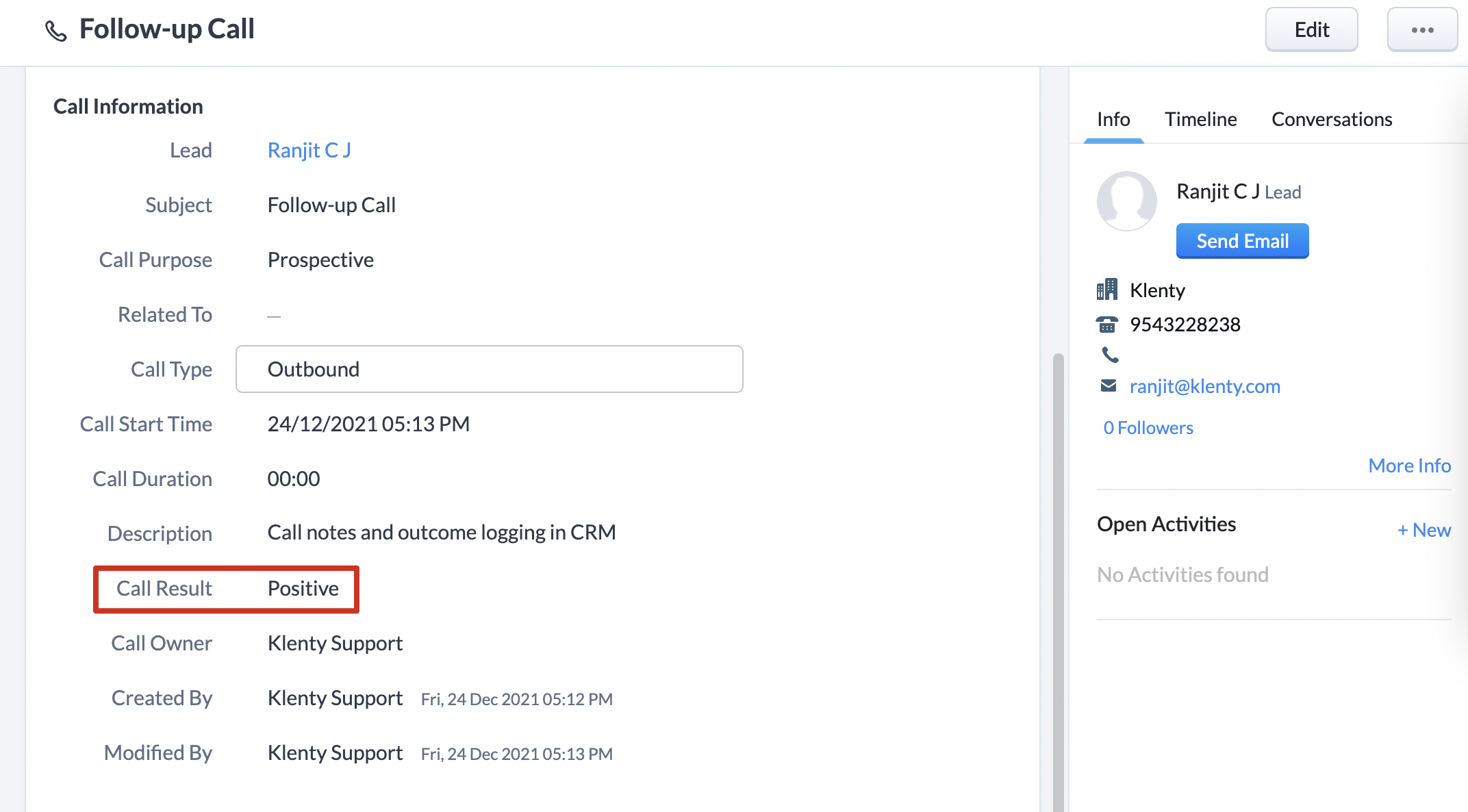
When you save a call in Klenty, its outcome can be logged. You can then send that call result to your CRM.
A call outcome can be logged when the call status is Answered. You can do this from Calls → Completed Calls, or from the Calls section inside a cadence.
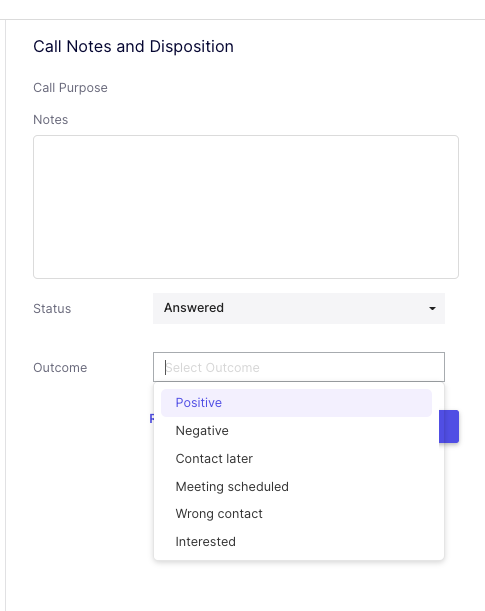
To log the call in your CRM, switch on the call trigger:

Go to Settings → CRM Settings → Triggers.
Find the call row, such as Call created/updated or Call completed, and switch it on. Names vary slightly by CRM.
Optional: click Configure to add a prefix to synced activities and to choose what happens if the prospect doesn't exist in the CRM yet.
The call triggers appear only if your plan includes CRM triggers and calling. For the full guide to triggers, see Syncing to HubSpot with Triggers, Syncing to Pipedrive with Triggers, Syncing to Zoho CRM with triggers and Creating & Logging Activities to Salesforce CRM.
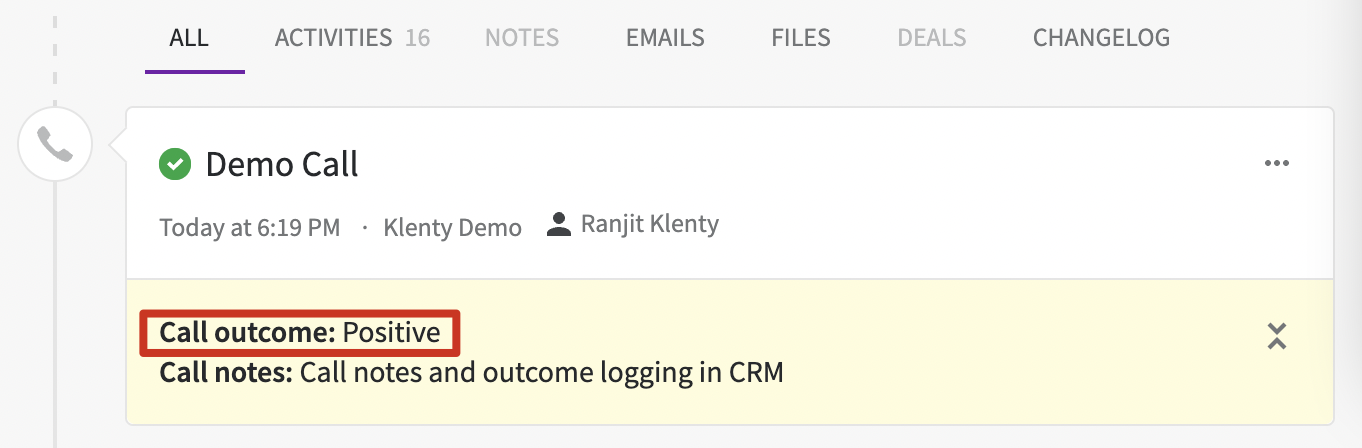
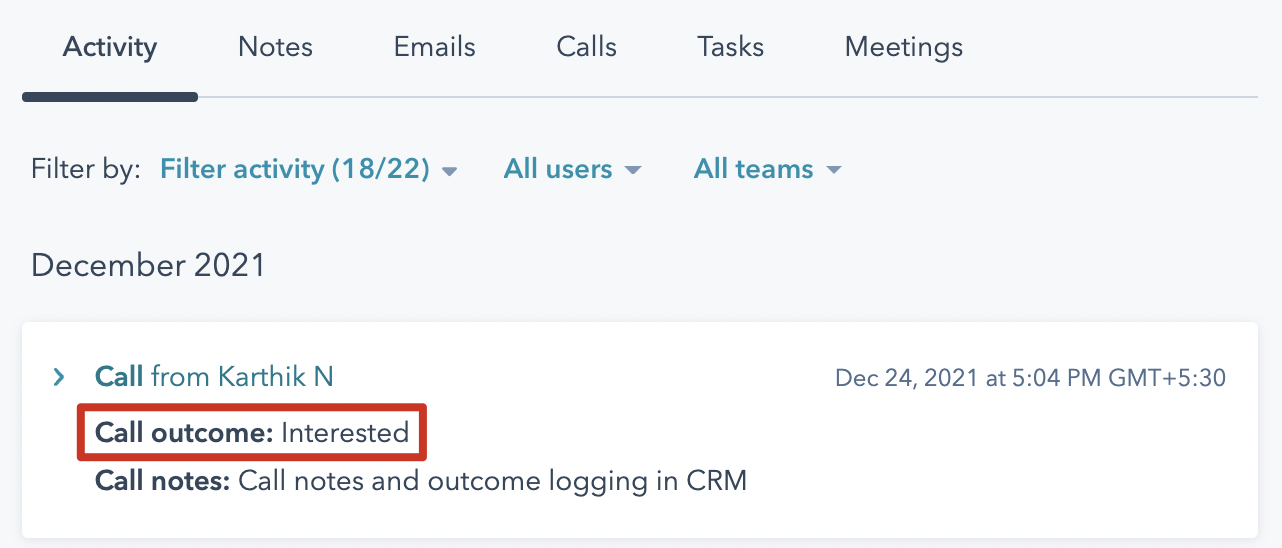
The logged call shows up on the prospect's record in your CRM: HubSpot, Pipedrive, Zoho or Salesforce.
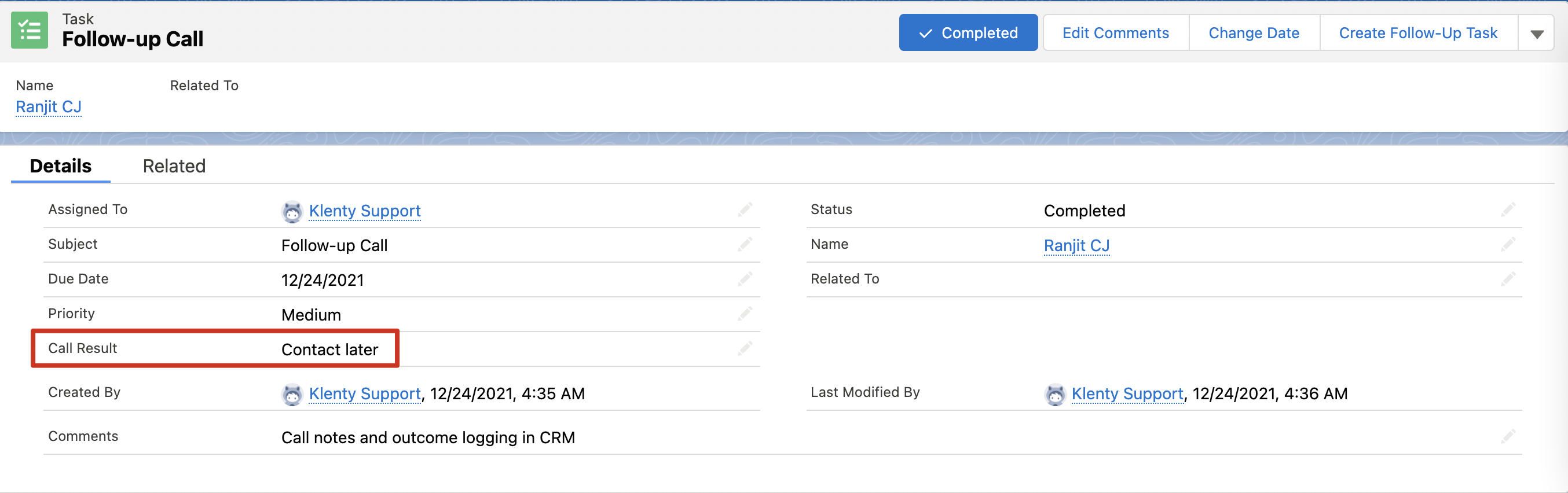
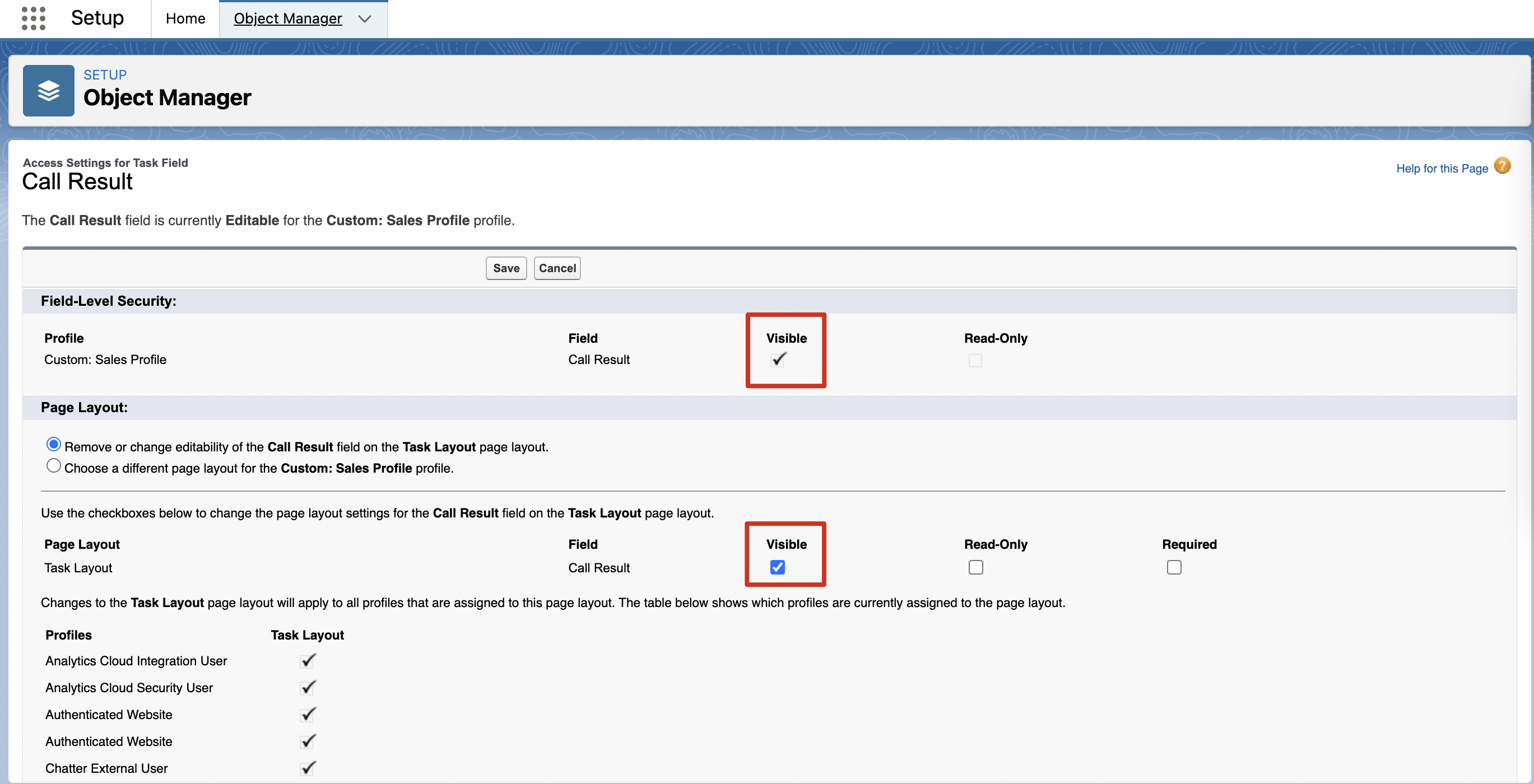
For Salesforce, first make the Call Result field available in your Salesforce settings.
In Salesforce, go to Setup → Settings → Security → Field Accessibility.
Open Task, then View by Fields.
Select the field Call Result.
For the profile your Klenty users have, set the field to Editable and Visible, then Save.
If you call from inside your CRM using the Klenty plugin, see How to make calls from HubSpot using the Klenty plugin (and the matching Pipedrive, Salesforce and Zoho articles).
Call transcripts have their own sync. See the Sync Transcript to CRM articles.
Call logging depends on the call status being Answered.
